本文整理自我 2023 年在 HackMD 上的實作筆記,指令與版本以當時環境為準(Ubuntu 22.04、srsRAN 4G / Project、Open5GS)。
1. System Requirements
要跑起 srsRAN Project 的 gNB,需要:
- 一台 Linux PC(Ubuntu 20.04 以上;本文用 22.04)
- 一台 USRP(B210 或 X310),或改用 ZMQ 在同一台機器上模擬射頻
- srsRAN Project(gNB)
- 第三方 5G core:本文用 Open5GS
- 第三方 5G UE:本文用 srsRAN 4G 的 srsUE 經 ZMQ 連接
2. UHD

From: https://files.ettus.com/manual/page_build_guide.html
2-1 Setting up the dependencies on Ubuntu
sudo apt-get install autoconf automake build-essential ccache cmake cpufrequtils doxygen ethtool \
g++ git inetutils-tools libboost-all-dev libncurses5 libncurses5-dev libusb-1.0-0 libusb-1.0-0-dev \
libusb-dev python3-dev python3-mako python3-numpy python3-requests python3-scipy python3-setuptools \
python3-ruamel.yaml
2-2 Getting the source code
git clone https://github.com/EttusResearch/uhd.git2-3 Build Instructions
cd <uhd-repo-path>/host
mkdir build
cd build
cmake ../
make
make test # This step is optional
sudo make install
3. ZMQ
3-1 Install development libraries
sudo apt-get install cmake make gcc g++ pkg-config libfftw3-dev libmbedtls-dev libsctp-dev libyaml-cpp-dev libgtest-dev
sudo apt-get install libzmq3-dev
3-2 Install libzmq
git clone https://github.com/zeromq/libzmq.git
cd libzmq
./autogen.sh
./configure
make
sudo make install
sudo ldconfig
3-2 Install czmq
git clone https://github.com/zeromq/czmq.git
cd czmq
./autogen.sh
./configure
make
sudo make install
sudo ldconfig
4. srsRAN 4G
From: https://docs.srsran.com/projects/4g/en/latest/index.html
4-1 Install required libraries
sudo apt-get install build-essential cmake libfftw3-dev libmbedtls-dev libboost-program-options-dev libconfig++-dev libsctp-dev4-2 Download and build srsRAN 4G
git clone https://github.com/srsRAN/srsRAN_4G.git
cd srsRAN_4G
mkdir build
cd build
cmake ../
make
make test
4-3 Install srsRAN 4G
sudo make install
srsran_install_configs.sh user
5. srsRAN Project
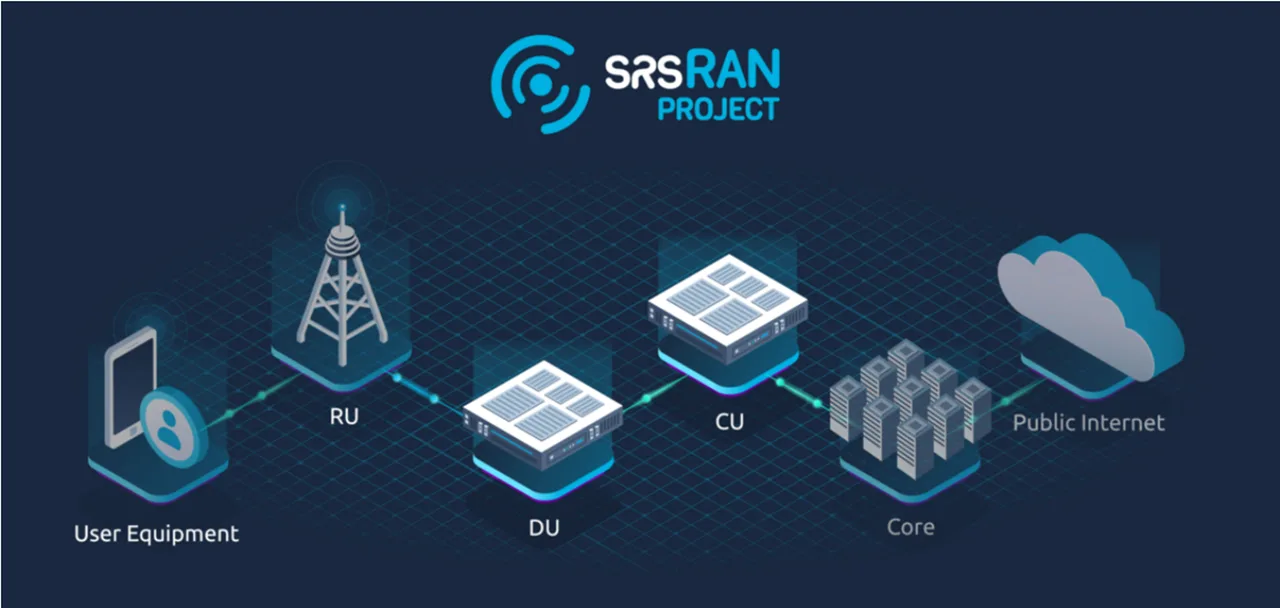
From: https://docs.srsran.com/projects/project/en/latest/index.html
5-1 Install required libraries
sudo apt-get install cmake make gcc g++ pkg-config libfftw3-dev libmbedtls-dev libsctp-dev libyaml-cpp-dev libgtest-dev5-2 RF driver 的選擇

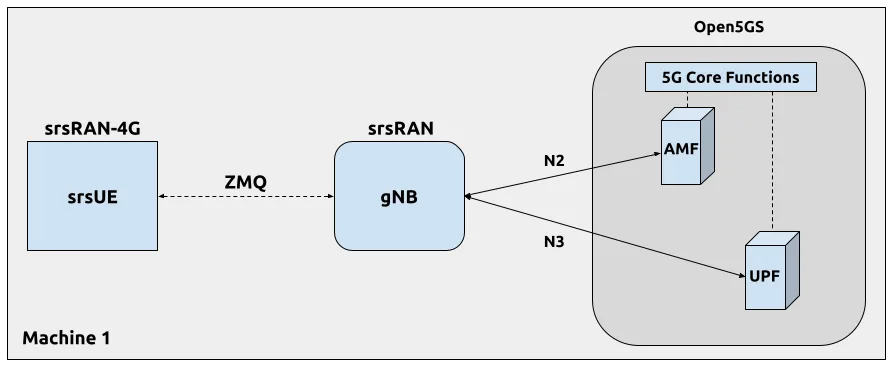
gNB 可以接 USRP B210、X310,或用 ZMQ 不接任何硬體。USRP 需要先裝好第 2 節的 UHD;ZMQ 需要第 3 節的 libzmq 與 czmq。本文的 gNB 與 srsUE 在同一台機器上以 ZMQ 對接,實機測試時換成 B210。
5-3 Download and build srsRAN Project
不用 ZMQ 時:
git clone https://github.com/srsRAN/srsRAN_Project.git
cd srsRAN_Project
mkdir build
cd build
cmake ../
make -j $(nproc)
make test -j $(nproc)
要用 ZMQ 時,cmake 要多帶兩個旗標:
git clone https://github.com/srsran/srsRAN_Project.git
cd srsRAN_Project
mkdir build
cd build
cmake ../ -DENABLE_EXPORT=ON -DENABLE_ZEROMQ=ON
make -j`nproc`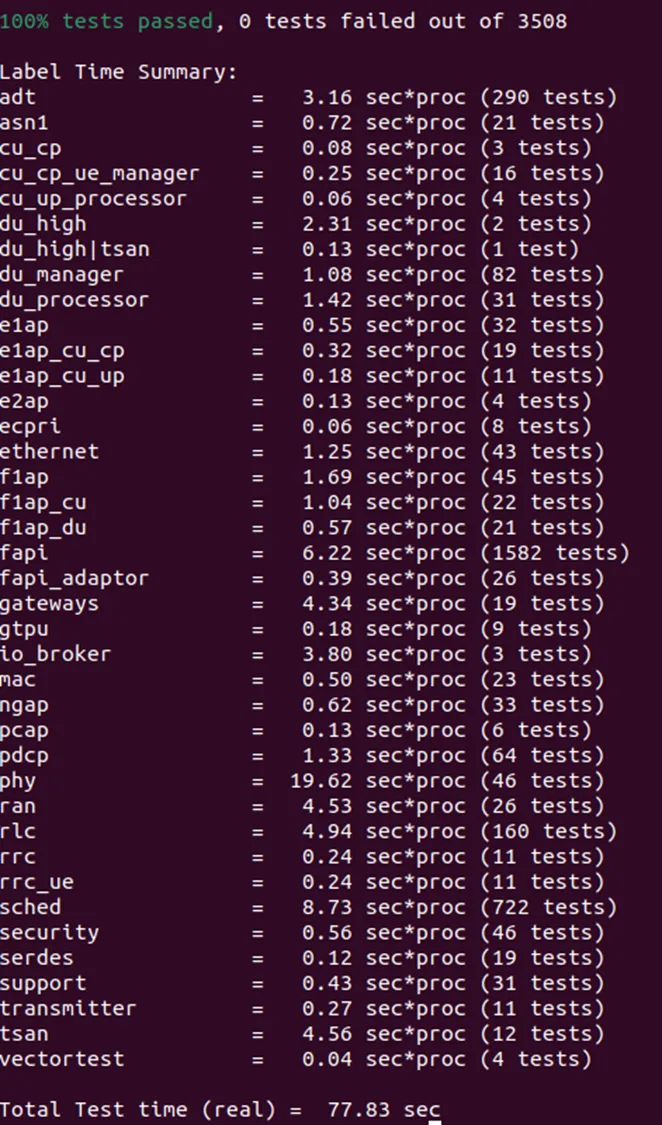
5-4 Install srsRAN Project
sudo make install6. Open5gs
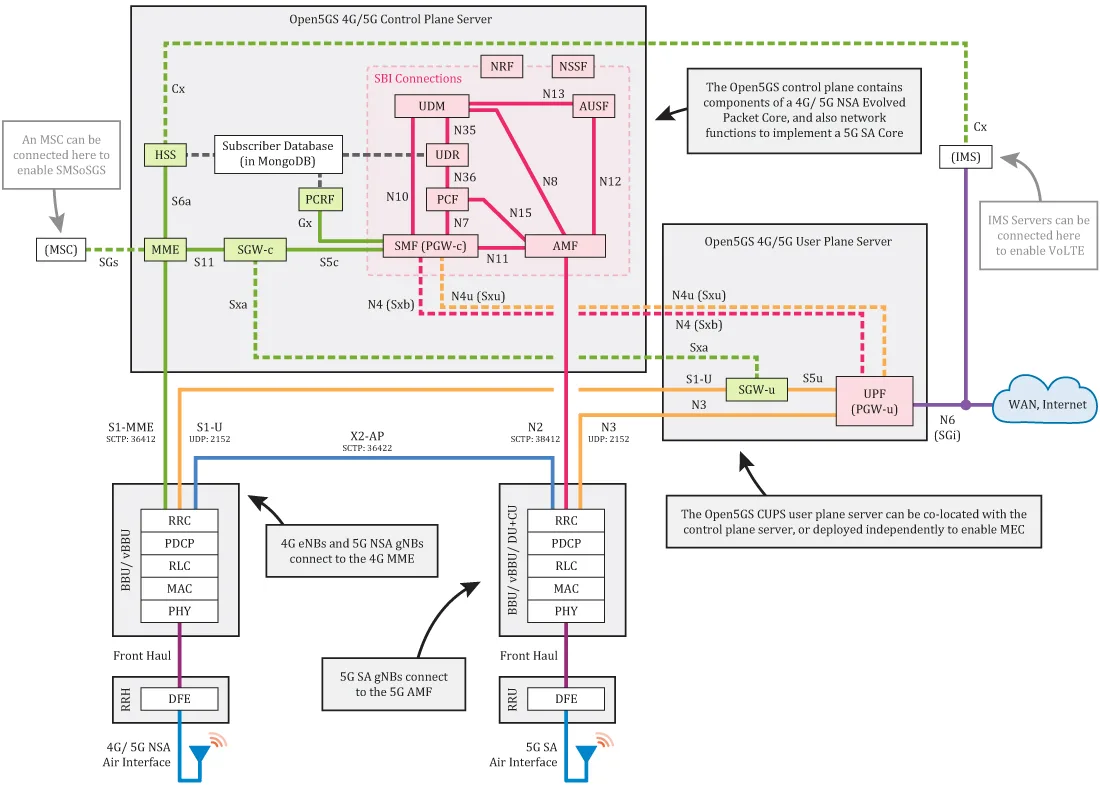
From: https://open5gs.org/open5gs/docs/guide/01-quickstart/
6-1 Getting MongoDB
sudo apt update
sudo apt install gnupg
curl -fsSL https://pgp.mongodb.com/server-6.0.asc | sudo gpg -o /usr/share/keyrings/mongodb-server-6.0.gpg --dearmor
6-1-2 On ubuntu 22.04 (Jammy)
echo "deb [ arch=amd64,arm64 signed-by=/usr/share/keyrings/mongodb-server-6.0.gpg] https://repo.mongodb.org/apt/ubuntu jammy/mongodb-org/6.0 multiverse" | sudo tee /etc/apt/sources.list.d/mongodb-org-6.0.list6-1-3 Install the MongoDB packages
sudo apt update
sudo apt install -y mongodb-org
sudo systemctl start mongod (if '/usr/bin/mongod' is not running)
sudo systemctl enable mongod (ensure to automatically start it on system boot)
6-2 Install Open5GS
sudo add-apt-repository ppa:open5gs/latest
sudo apt update
sudo apt install open5gs
6-3 Install the WebUI of Open5GS
6-3-1 Download and import the Nodesource GPG key
sudo apt update
sudo apt install -y ca-certificates curl gnupg
sudo mkdir -p /etc/apt/keyrings
curl -fsSL https://deb.nodesource.com/gpgkey/nodesource-repo.gpg.key | sudo gpg --dearmor -o /etc/apt/keyrings/nodesource.gpg
6-3-2 Create deb repository
NODE_MAJOR=20
echo "deb [signed-by=/etc/apt/keyrings/nodesource.gpg] https://deb.nodesource.com/node_$NODE_MAJOR.x nodistro main" | sudo tee /etc/apt/sources.list.d/nodesource.list
6-3-3 Run Update and Install
sudo apt update
sudo apt install nodejs -y
6-3-3 Install WebUI of Open5GS
curl -fsSL https://open5gs.org/open5gs/assets/webui/install | sudo -E bash -6-4 Register Subscriber Information
6-4-1 Connect to http://localhost:9999 and login with admin account.
Username : admin
Password : 1423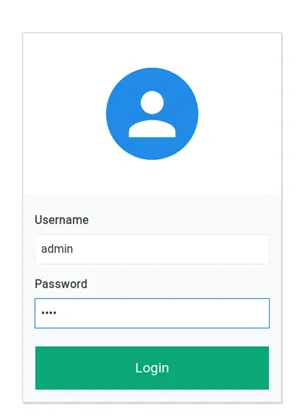
6-4-2 To add subscriber information, you can do WebUI operations in the following order:
1. Go to Subscriber Menu.
2. Click + Button to add a new subscriber.
3. Fill the IMSI, security context(K, OPc, AMF), and APN of the subscriber.
4. Click SAVE Button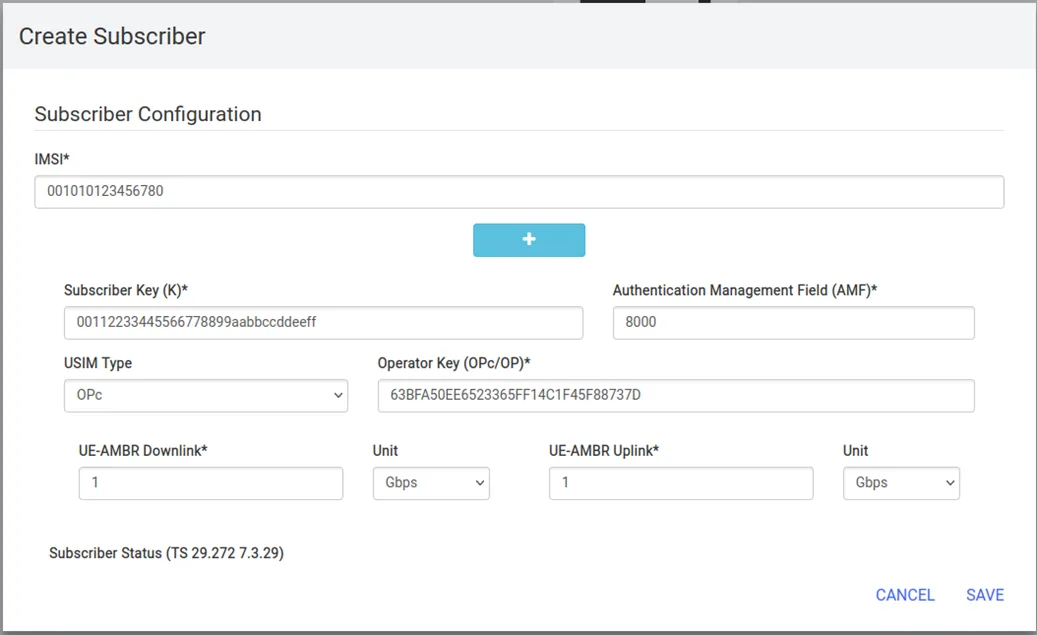
6-5 Adding a route for the UE to have WAN connectivity
To enable forwarding and add the NAT rule, enter
### Enable IPv4/IPv6 Forwarding
sudo sysctl -w net.ipv4.ip_forward=1
sudo sysctl -w net.ipv6.conf.all.forwarding=1

### Add NAT Rule
sudo iptables -t nat -A POSTROUTING -s 10.45.0.0/16 ! -o ogstun -j MASQUERADE
sudo ip6tables -t nat -A POSTROUTING -s 2001:db8:cafe::/48 ! -o ogstun -j MASQUERADE
7. Modify setting file
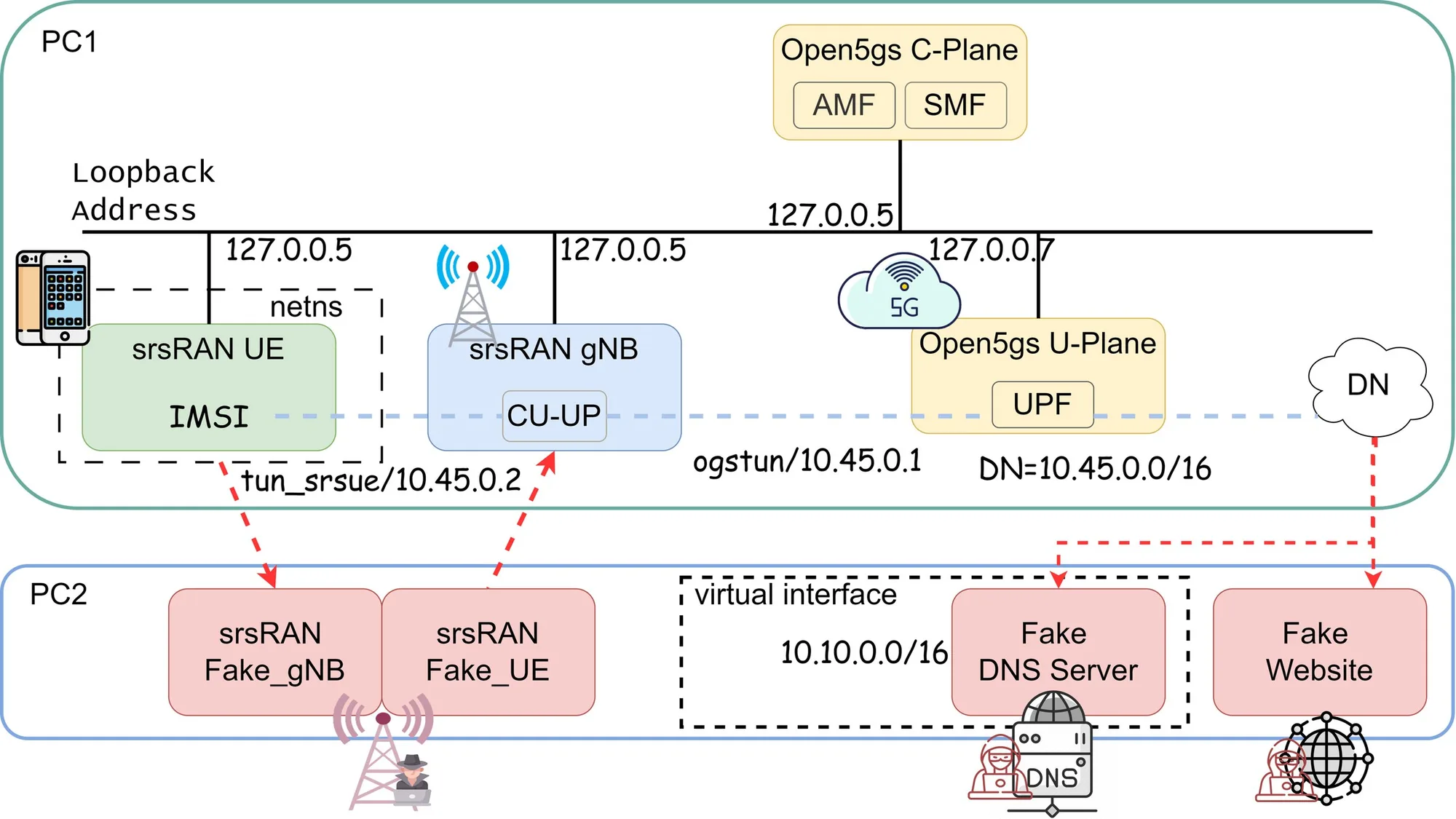
7-0 系統架構
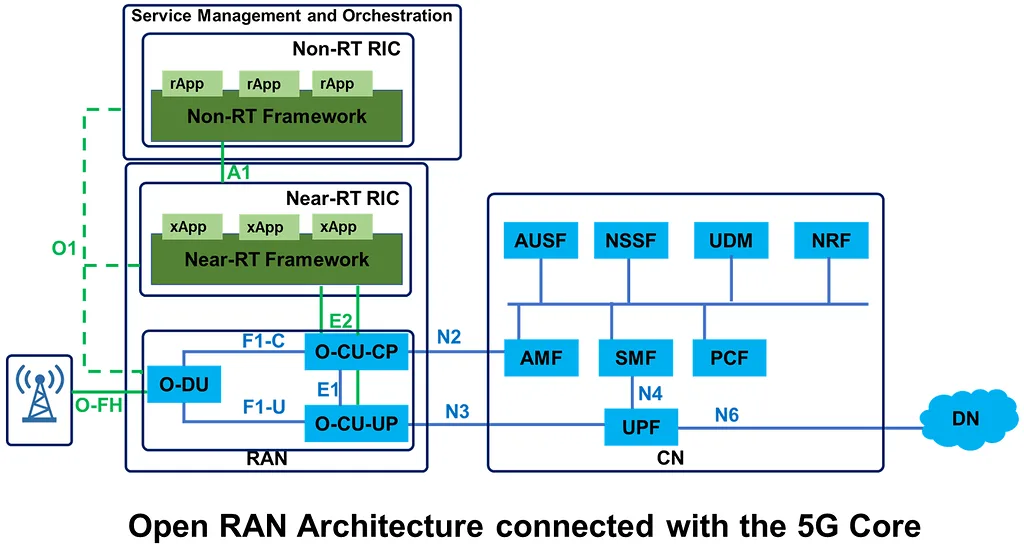
gNB 的設定檔都在 srsRAN_Project/configs/,依你的 RF 前端挑一個當底,例如 B210 用 gnb_rf_b200_tdd_n78_20mhz.yml,ZMQ 用 gnb_zmq.yml:
cd srsRAN_Project/configs
ls
7-1 Modify gnb.conf
cd srsRAN_Project/configs
sudo vim gnb_zmq.yml
amf:
  addr: 127.0.0.5
  bind_addr: 127.0.0.5
7-2 Modify amf.yml
cd /etc/open5gs
sudo vim amf.yaml
  guami:
    - plmn_id:
        mcc: 001
        mnc: 01
      amf_id:
        region: 2
        set: 1
  tai:
    - plmn_id:
        mcc: 001
        mnc: 01
      tac: 7
  plmn_support:
    - plmn_id:
        mcc: 001
        mnc: 01
7-3 Modify nrf.yml
sudo vim nrf.yaml
nrf:
  serving:  # 5G roaming requires PLMN in NRF
    - plmn_id:
        mcc: 001
        mnc: 01
8. Turn on open5gs / gNB / UE
8-1 Turn on/off open5gs
## turn on
sudo systemctl restart open5gs-amfd
or
sudo systemctl restart open5gs-*

## turn off
sudo systemctl stop open5gs-amfd
or
sudo systemctl restart open5gs-*
8-2 Turn on gNB
sudo gnb -c gnb_rf_b200_tdd_n78_10mhz.yml8-3 Turn on UE
=> If UE, gNB, CN in one VM do network namespace
sudo ip netns add ue1
sudo ip netns list
sudo ip netns exec ue1 ping 172.16.0.1
Turn on UE
sudo srsue ue.conf9. Adding a route for the UE to have WAN connectivity
=> In order to bridge between the PGWU/UPF and WAN (Internet), must enable IP forwarding and add a NAT rule to your IP Tables.
9-1 To enable forwarding and add the NAT rule
### Enable IPv4/IPv6 Forwarding
sudo sysctl -w net.ipv4.ip_forward=1
sudo sysctl -w net.ipv6.conf.all.forwarding=1

### Add NAT Rule
sudo iptables -t nat -A POSTROUTING -s 10.45.0.0/16 ! -o ogstun -j MASQUERADE
sudo ip6tables -t nat -A POSTROUTING -s 2001:db8:cafe::/48 ! -o ogstun -j MASQUERADE
9-2 Configure the firewall correctly
sudo ufw status
=> Status: active
sudo ufw disable
=> Firewall stopped and disabled on system startup
sudo ufw status
=> Status: inactive
9-3 add a default route for the UE
sudo ip netns exec ue1 ip route add default via 10.45.0.1 dev tun_srsueRouting table of ue1:
user@user:~$ sudo ip netns exec ue1 route -n
Kernel IP routing table
Destination     Gateway         Genmask         Flags Metric Ref    Use Iface
0.0.0.0         10.45.0.1       0.0.0.0         UG    0      0        0 tun_srsue
10.45.0.0       0.0.0.0         255.255.255.0   U     0      0        0 tun_srsue
10. Application
10-1 Using chrome to browse website with srsue
Download chrome
wget -c https://dl.google.com/linux/direct/google-chrome-stable_current_amd64.deb
sudo dpkg -i google-chrome-stable_current_amd64.deb
sudo apt-get install -f
sudo ip netns exec ue1 su -c "DISPLAY=:0 google-chrome --no-sandbox" $USER10-2 Using tun_srsue to ping
sudo ping -I tun_srsue google.com
sudo traceroute -i tun_srsue google.com
********************* Troubleshooting *********************
Can not connect to network:
sudo vim /etc/resolv.conf
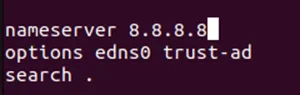
nameserver 8.8.8.8